ソースコード
/** 「お待ちください」ダイアログが消えるまで待つ */
function wait() {
	return new Promise(res => {
		const $busy = document.querySelector('#BusyWait')
		function checkDone() {
			if ($busy.style.display == 'none') res()
			else setTimeout(checkDone, 50)
		}
		checkDone()
	})
}

for (const $tele of document.querySelectorAll('.vtelework.day_tele0')) {
	// 勤務場所をクリック
	$tele.click()
	// 0.5秒待つ
	await new Promise(res => setTimeout(res, 500))

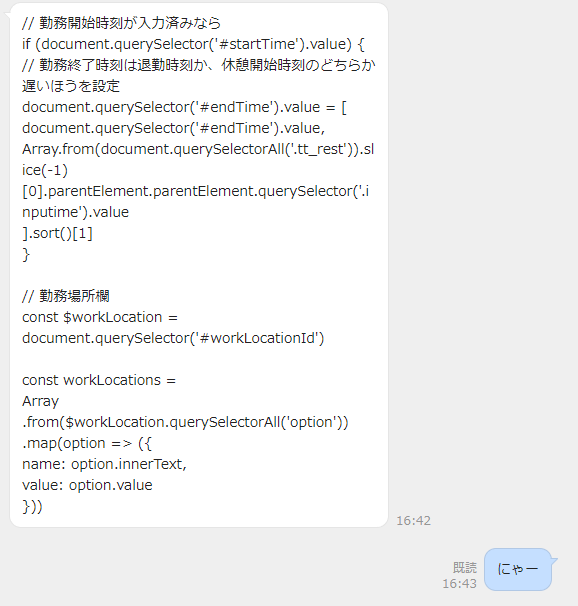
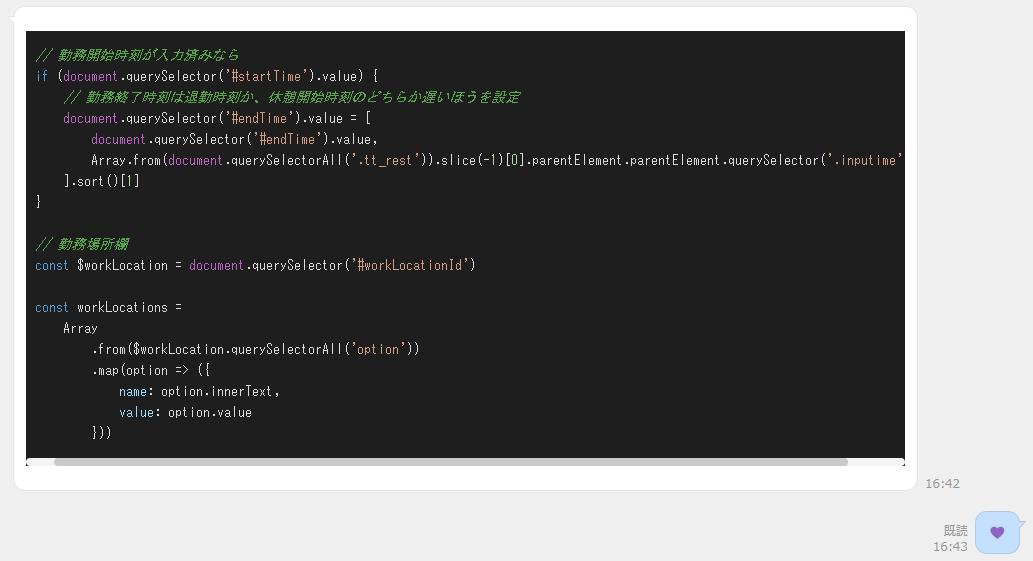
	// 勤務開始時刻が入力済みなら
	if (document.querySelector('#startTime').value) {
		// 勤務終了時刻は退勤時刻か、休憩開始時刻のどちらか遅いほうを設定
		document.querySelector('#endTime').value = [
			document.querySelector('#endTime').value,
			Array.from(document.querySelectorAll('.tt_rest')).slice(-1)[0].parentElement.parentElement.querySelector('.inputime').value
		].sort()[1]
	}

	// 勤務場所欄
	const $workLocation = document.querySelector('#workLocationId')

	const workLocations =
		Array
			.from($workLocation.querySelectorAll('option'))
			.map(option => ({
				name: option.innerText,
				value: option.value
			}))

	const weekday = $tele.parentElement.querySelector('.vweek').innerText
	// 曜日が、月曜か金曜 または、木曜日であれば出社曜日として処理
	$workLocation.value = ['月', '金' , '木'].includes(weekday) ? workLocations[1].value : workLocations[2].value
	// 保存のためにOKボタンを押す
	document.querySelector('#dlgInpTimeOk').click()
	// 保存完了まで待って、次の日にちへ
	await wait()
}